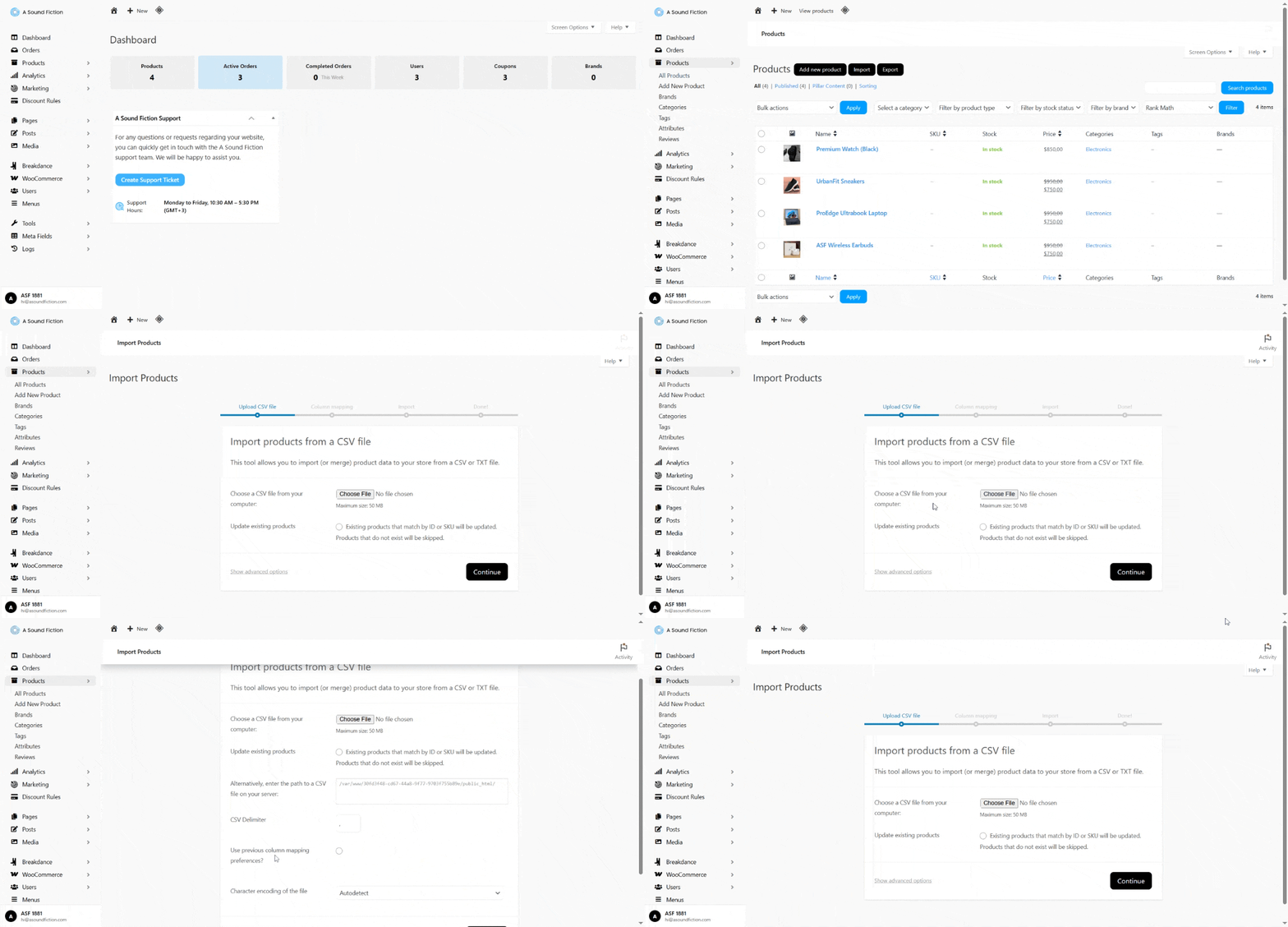
In this section, you can bulk upload (import) your products into the system using an Excel (CSV) file, or export your existing products to download them to your computer. This enables easy, large-scale product management without dealing with manual processes.
This method is especially useful for users who want to add or update product details such as price, stock, category, or description for multiple products at once.
18.1 – Exporting Products
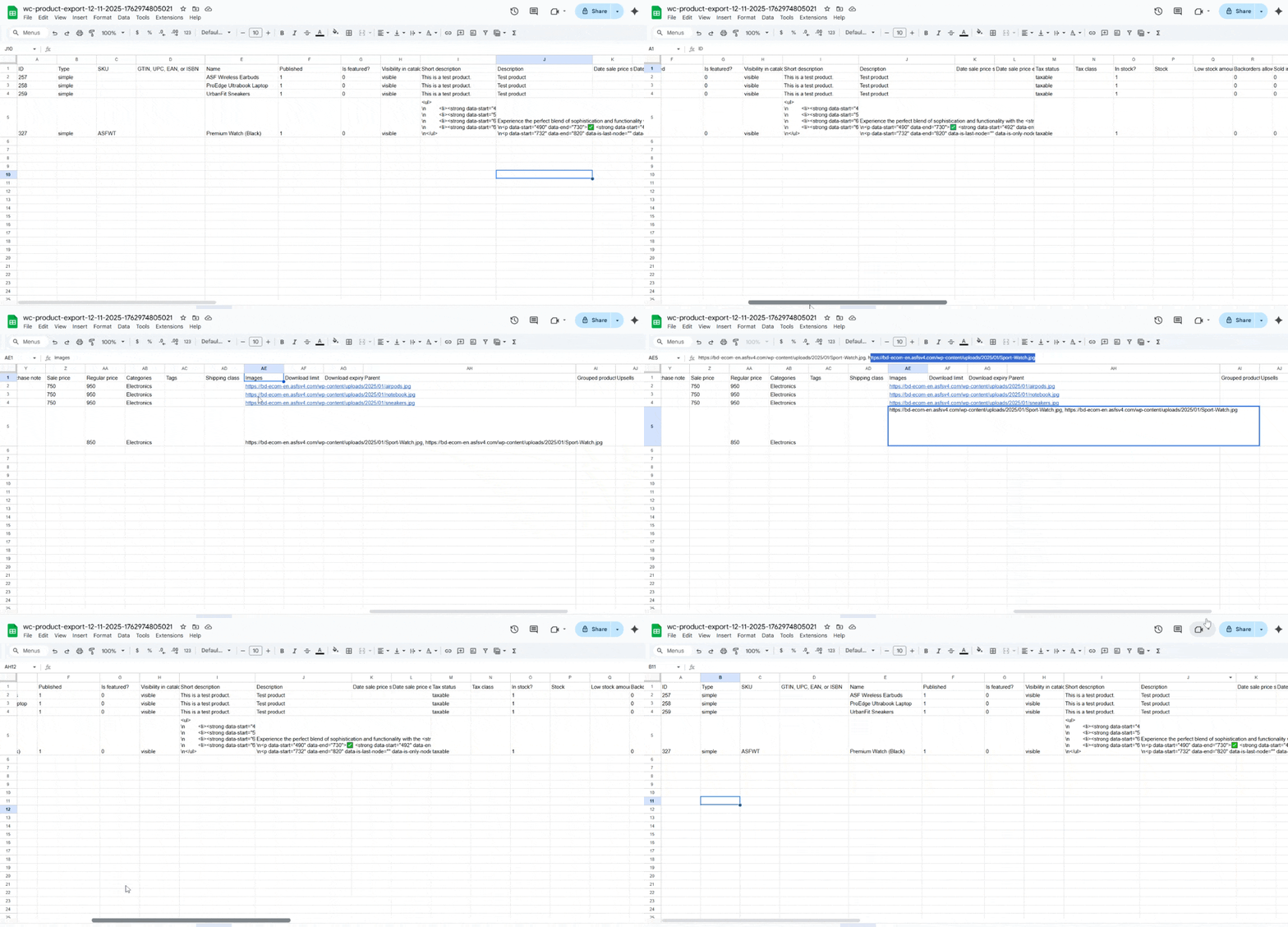
This tool allows you to export your store’s product data as a CSV file. By doing so, you can back up your product information, use it in other systems, or edit it in Excel for bulk updates.
To perform this process, follow the steps below:
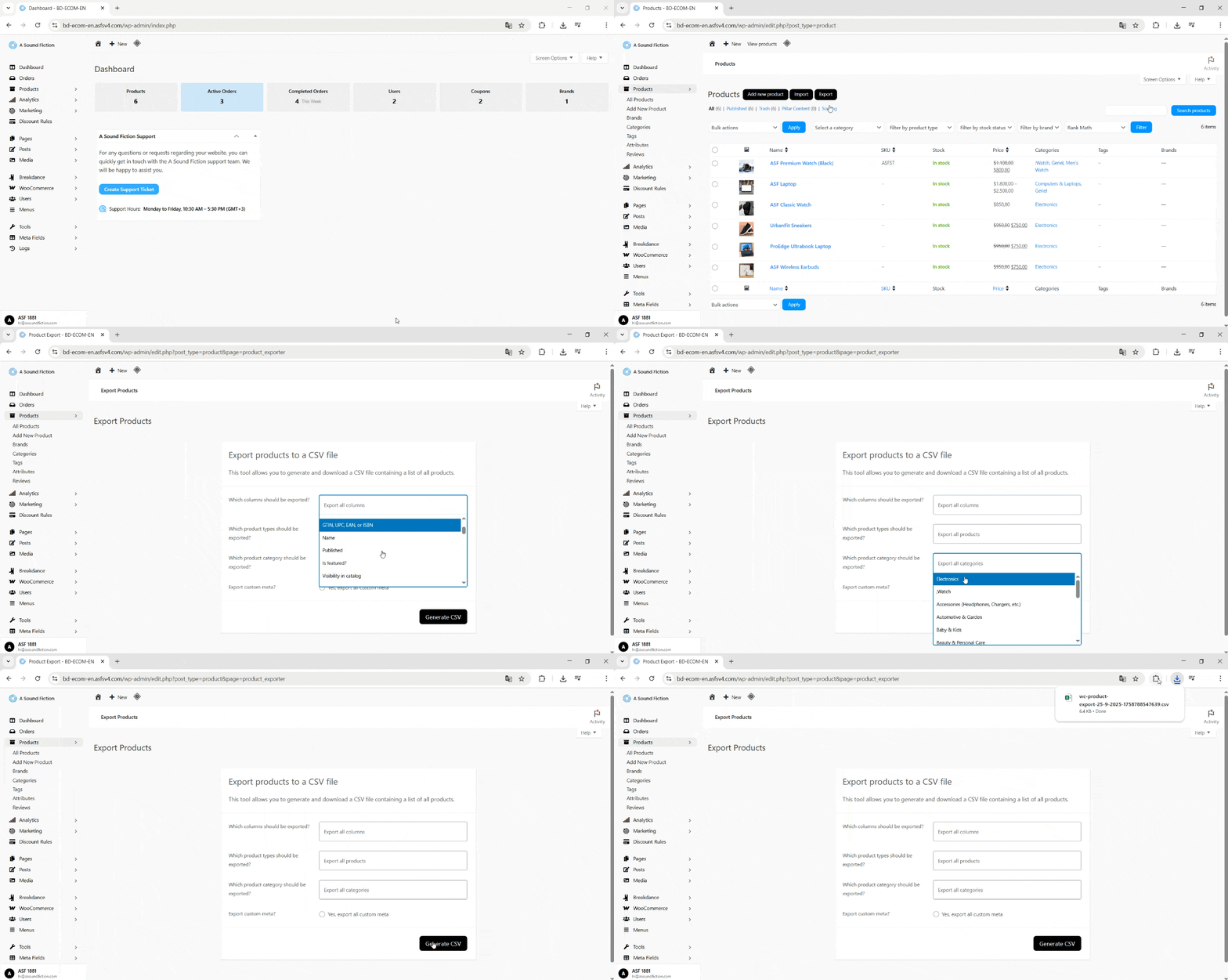
From the admin panel, go to Products > All Products > Export.
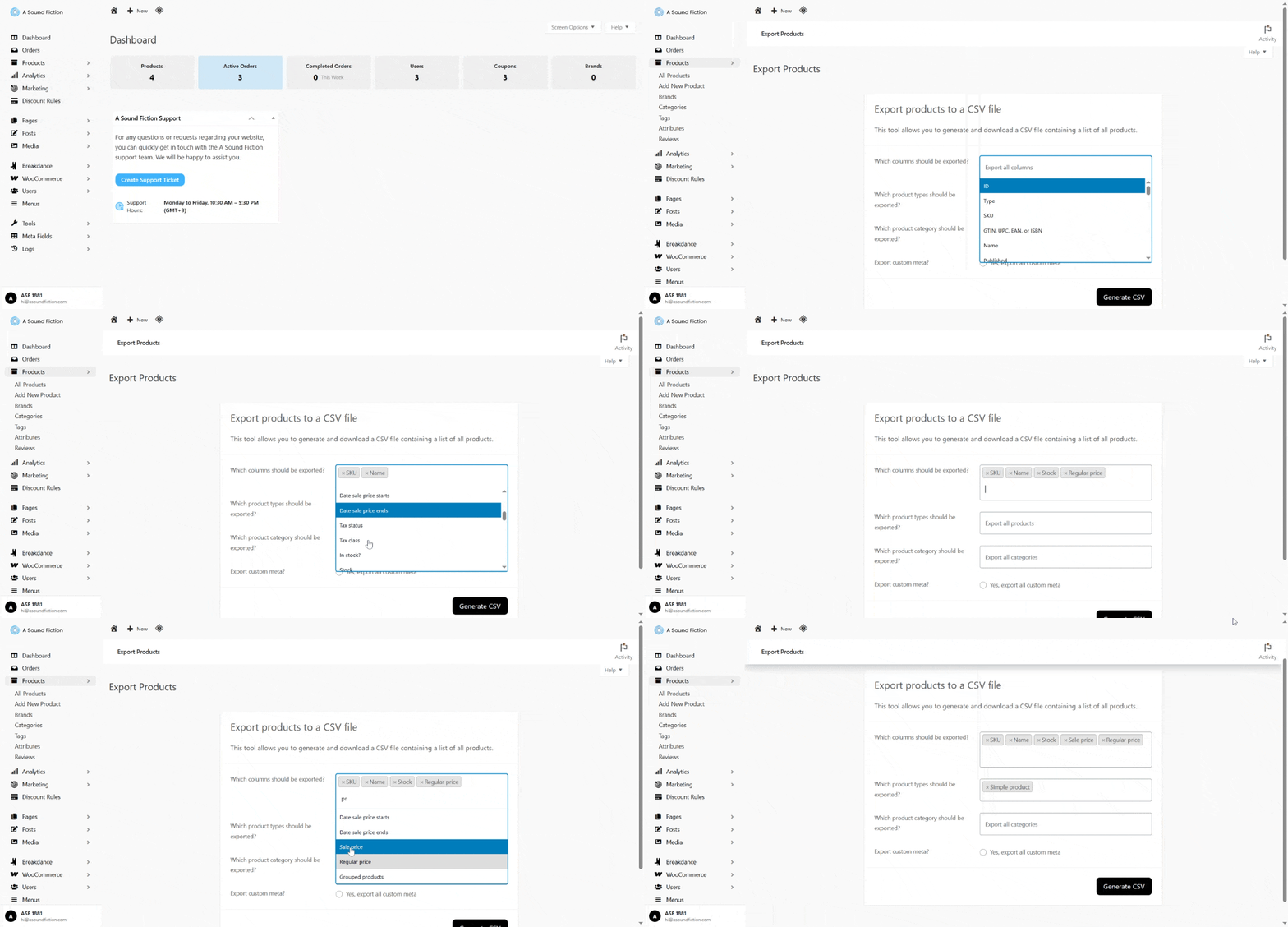
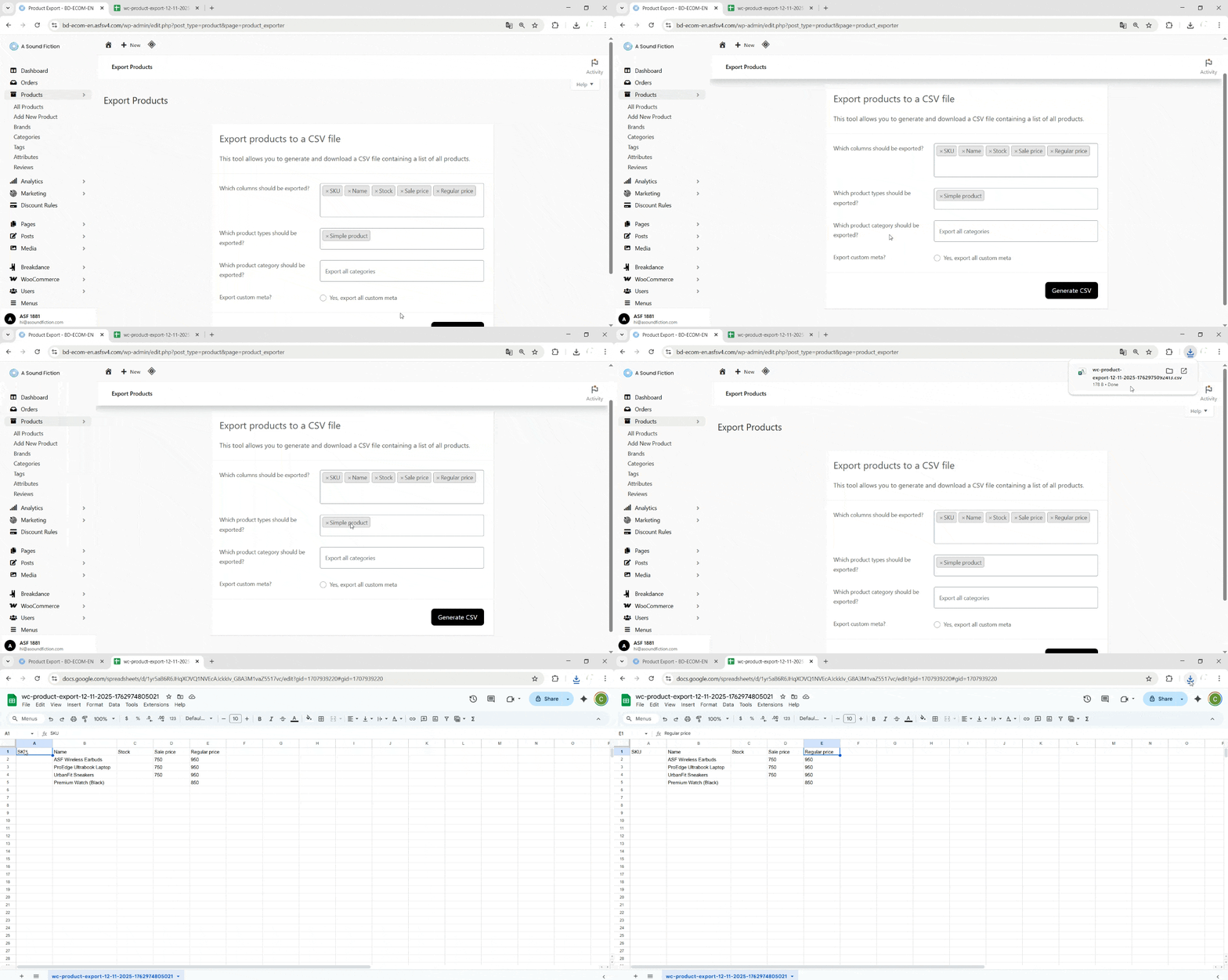
In the form that appears, set the necessary filters for export:
Field
Description
Which columns should be exported?
Specifies which information from the product table (e.g., product name, regular price, stock, category, etc.) will be included. By default, “Export all columns” is selected.
Which product types should be exported?
If you only want to export specific product types, you can select them here. For example: Simple products, Variable products, Discounted products.
Which product category should be exported?
If you want to export products from a specific category, you can select that category here.
Export custom meta?
If your products have custom fields (e.g., “Additional Information”, “Technical Specifications”), check the “Yes, export all custom meta” option to include these fields in the CSV file.
After completing all selections, click the “Generate CSV” button at the bottom right of the screen. The system will create the CSV file based on your chosen criteria and automatically prompt you to download it.
Tip If you want to back up all products, simply click the “Generate CSV” button without changing any filters.
18.2 – Import Products
This tool allows you to bulk add or update products using a CSV file. It’s especially useful when you need to upload a large number of products. You can bulk update stock levels, import products from another site, or make mass edits to existing ones.
In short, instead of adding hundreds of products one by one, you can upload them all at once with just a few clicks.
Step 1: Preparing and Downloading the Product File
Using the import tool for bulk product uploads or updates helps you save time. The preparation stage is crucial for a successful import process. Follow these steps:
Export (Optional but Recommended): Download your existing products from the “Export” menu to get a reference CSV file. ➜ This file shows the column names expected by the system (e.g., Name, Regular Price, Stock, etc.). ➜ It also serves as a template to help ensure a smooth import process without errors.
Edit in Excel: Make the necessary changes in the exported file — for example, add new products or update prices/stock levels.
Save: Once your edits are complete, save the file on your computer in CSV format.
Step 2: Go to the Import Menu
From the admin panel, click Products > Import in the left menu.
On this page, under “Import Products from a CSV File,” the bulk upload tool will open.
Step 3: Select Your File
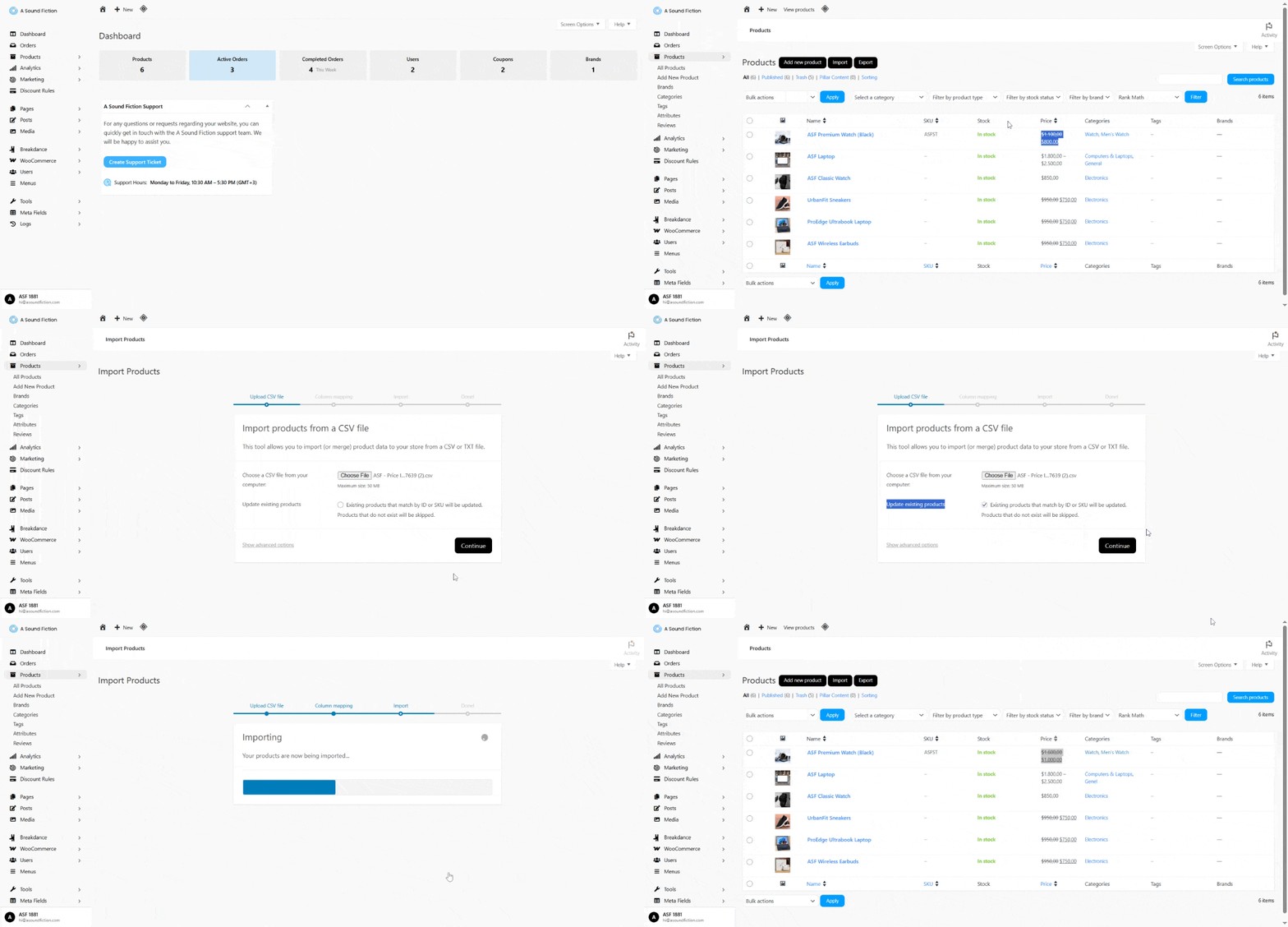
Use the field “Choose a CSV file from your computer” to upload your product file.
👉 Maximum file size: 50 MB. Once you select the file, the system will automatically verify the data.
Step 4: Update Existing Products (Optional)
If you want to update products that already exist in your system, enable this option.
When enabled: Products with the same ID or SKU will be updated.
When disabled: Only new products will be added; existing ones remain unchanged.
This feature is useful for bulk updates such as prices, stock, or descriptions.
Tip Always back up your products using the “Export” tool before making mass changes.
Step 5: Advanced Options
At the bottom of the page, click “Show advanced options” to access detailed settings.
Here, you can customize technical parameters such as the CSV delimiter, date format, etc.
In most cases, the default settings are compatible with Excel files, so there’s no need to change them.
Step 6: Continue
After selecting the file you want to upload and adjusting the update option if necessary, click the “Continue” button.
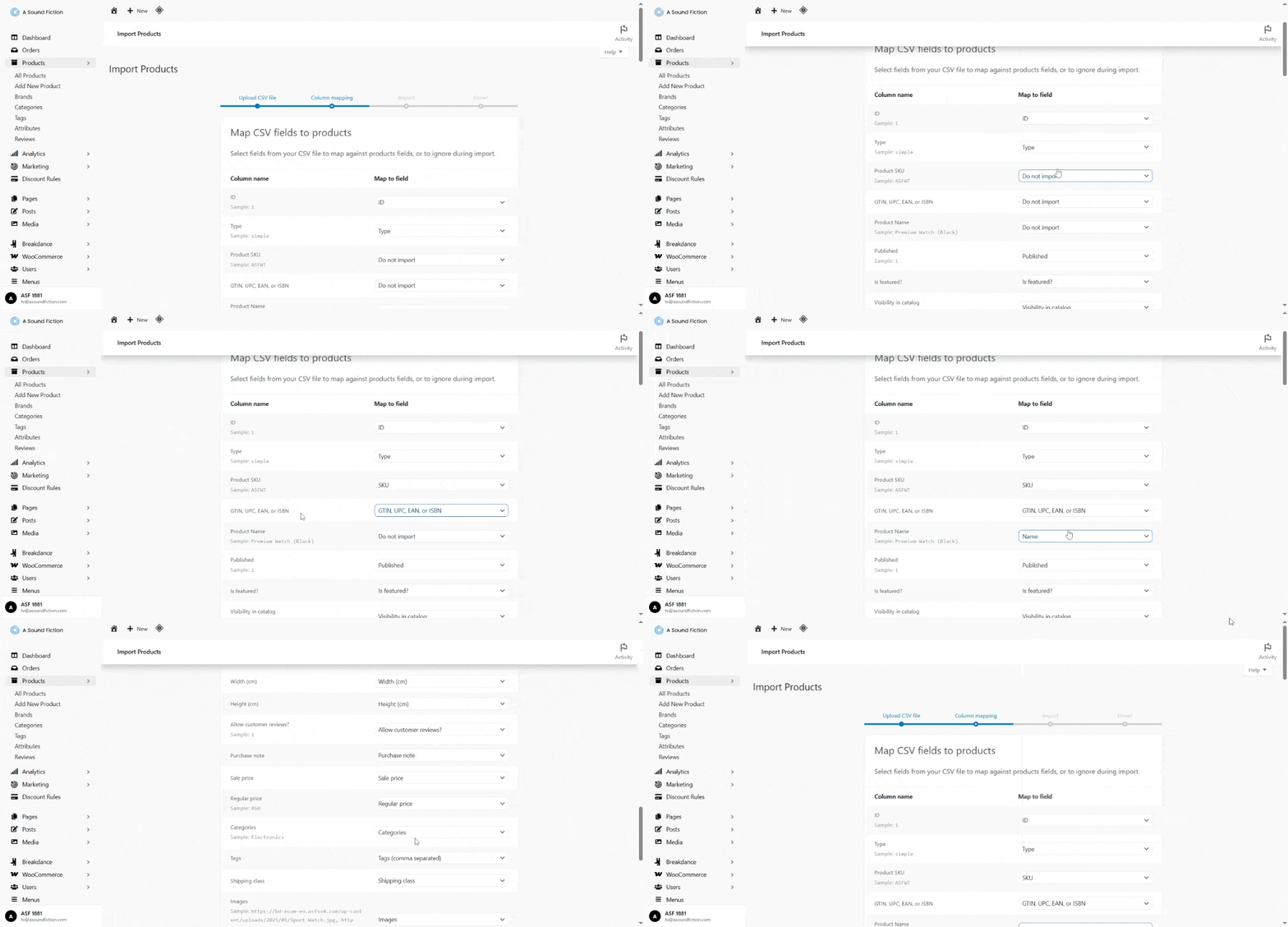
Step 7: Check the Column Mapping Screen
On the next screen, the system will display the column mapping page. Here, you can see which columns in your CSV file correspond to which product fields in the system.
The column headers in your CSV must match the product fields in the system.
For example:
ID → ID
Regular Price → Regular Price
Stock → Stock
SKU → SKU
If there are unnecessary columns, you can ignore them during the import process.
Step 8: Run the Importer and View Products
Once you’ve confirmed that all columns are mapped correctly, click “Run the Importer” to start the import process.
After the process is complete, click “View Products” to see your imported products.
⚠️ Important Notes
The file format must be CSV.
Column headers must exactly match the system’s field names. Using correct column names ensures data is imported into the right fields. For example, if your Excel column is named “ID”, the corresponding system field should also be “ID.” If there is no identical name, select the most accurate matching term. (Example: For the column “Product Stock Number”, select “SKU”.)
SKU (Stock Keeping Unit) must be unique. If the same SKU is used for multiple products, the system may overwrite or incorrectly update products.
When updating existing products, the file must include either the “ID” or “SKU” field. The system identifies existing products using these values. If neither is provided, the system treats them as new products.
Be careful with variable products. Each variation must have its own SKU value. If the relationship between the parent product and its variations is incorrect, the variations will not appear.
Always export and back up your products before importing. This allows you to easily restore your product list in case of errors.
Image files must already be uploaded to the Media Library. WooCommerce does not automatically fetch images — they must exist in your WordPress Media Library or have an accessible full URL.
The image URLs entered in the file must be complete and start with “https://”. Otherwise, the system won’t be able to find them. If using multiple images, separate each URL with a comma (,).
Can't find the answers you're looking for? We're here to help.
We Ask for Your Consent for a Better Experience We use cookies to ensure our website functions properly, personalize content and ads, provide social media features, and analyze site traffic. We also share information about your use of the site with our social media, advertising, and analytics partners.
Functional
Always active
Technical storage or access is strictly necessary for a legitimate purpose in order to provide a specific service explicitly requested by the subscriber or user, or to transmit a communication over an electronic communications network.
Tercihler
Teknik depolama veya erişim, abone veya kullanıcı tarafından talep edilmeyen tercihlerin saklanmasının meşru amacı için gereklidir.
Statistics
These cookies help us optimize our website. By allowing us to use these cookies, we can learn which pages our users enjoy browsing the most and which products are the most popular. Some of these cookies are provided by companies located outside the country. If you enable the use of these cookies, your personal data processed through the cookies will be transferred abroad.These cookies help us optimize our website. By allowing us to use these cookies, we can gain insights into which pages our users enjoy visiting the most and which products are the most popular. Some of the providers of these cookies are located abroad. If you enable the use of these cookies, your personal data processed through cookies will be transferred abroad.
Marketing
These cookies are used to help prevent you from seeing irrelevant ads. They are also used to display A Sound Fiction ads based on the products you browse, search for, or purchase when visiting other websites. Some of the providers of these cookies are located outside the country. If you enable the use of these cookies, your personal data processed through the cookies will be transferred abroad.