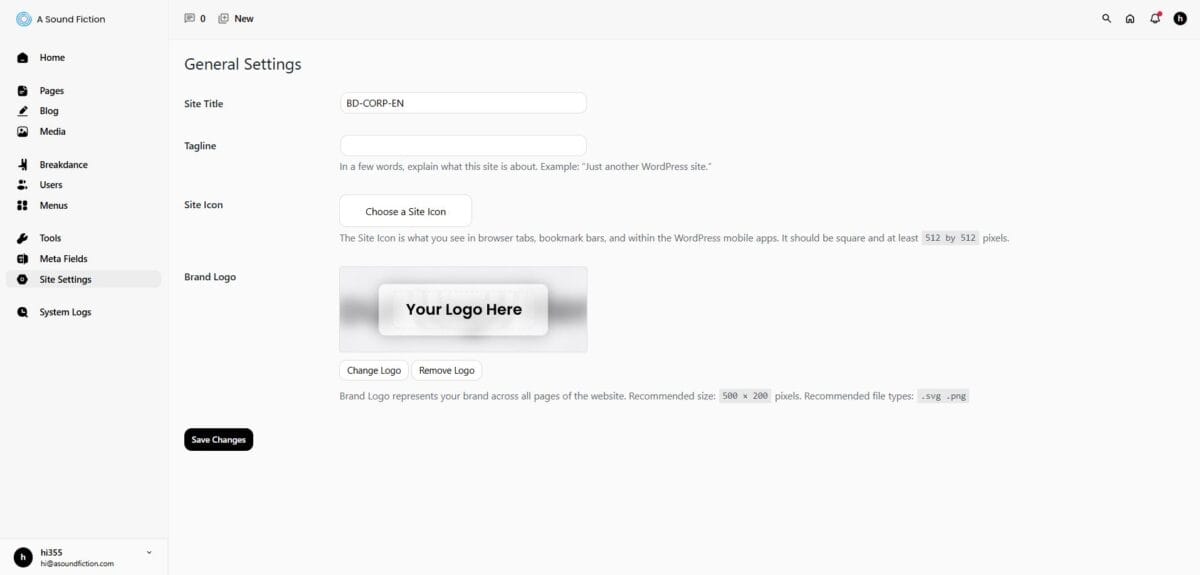
The Site Settings section is the area where the core visual and textual elements that define your website’s corporate identity (such as the logo, favicon, and brand name) are managed. Any changes made through this panel directly affect the overall appearance of your website as well as its identity in browser tab
11.1 – General Settings
To access the Site Settings panel, simply click on the “Site Settings” tab located in the left menu.
On this screen, you can make the following adjustments related to your website’s brand identity:
Site Title: You can enter the official name of your website in this field. This name is referenced in search engines and browser titles.
Tagline: You can add a short and concise slogan (ideally 3–4 words) that describes what your brand does (e.g. Corporate Digital Solutions).
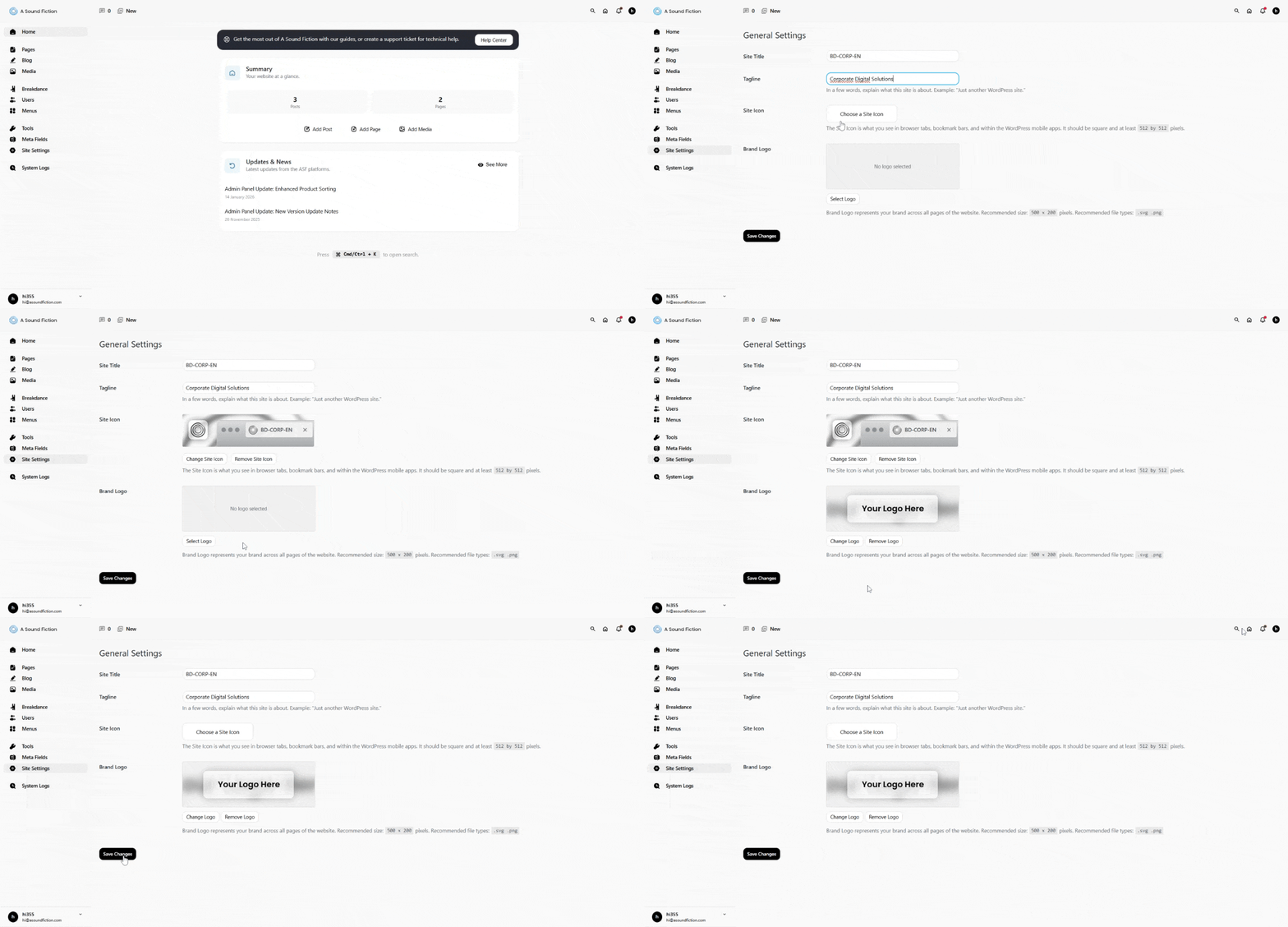
Site Icon: It is the small icon that appears in browser tabs, bookmark bars, and mobile home screen shortcuts. It is recommended to use a square image with a minimum size of 512 × 512 pixels. To add a site icon:
“Choose a Site Icon” butonuna tıklayın.
Select an image from the Media Library or upload a new one.
After making your selection, click the “Set as Site Icon” button.
Info After selecting a site icon, you can use the “Change Site Icon” button to update your current selection or the “Remove Site Icon” button to remove it.
Brand Logo: This is the main logo that will appear on all pages of your website. For the best appearance, the recommended size is 500 × 200 pixels. Supported file types: .svg and .png (for transparent backgrounds, .png or .svg should be preferred). To add a logo:
Click the “Select Logo” button.
Select an image from the Media Library or upload a new one.
After making your selection, click the “Select Logo” button.
Info After selecting a logo, you can use the “Change Logo” button to update the current logo or the “Remove Logo” button to remove it.
Tip In order for all changes to become active on the website, you must click the black “Save Changes” button located at the bottom left of the screen. If you leave the page without saving, the changes you made will not be applied.
Can't find the answers you're looking for? We're here to help.
We Ask for Your Consent for a Better Experience We use cookies to ensure our website functions properly, personalize content and ads, provide social media features, and analyze site traffic. We also share information about your use of the site with our social media, advertising, and analytics partners.
Functional
Always active
Technical storage or access is strictly necessary for a legitimate purpose in order to provide a specific service explicitly requested by the subscriber or user, or to transmit a communication over an electronic communications network.
Tercihler
Teknik depolama veya erişim, abone veya kullanıcı tarafından talep edilmeyen tercihlerin saklanmasının meşru amacı için gereklidir.
Statistics
These cookies help us optimize our website. By allowing us to use these cookies, we can learn which pages our users enjoy browsing the most and which products are the most popular. Some of these cookies are provided by companies located outside the country. If you enable the use of these cookies, your personal data processed through the cookies will be transferred abroad.These cookies help us optimize our website. By allowing us to use these cookies, we can gain insights into which pages our users enjoy visiting the most and which products are the most popular. Some of the providers of these cookies are located abroad. If you enable the use of these cookies, your personal data processed through cookies will be transferred abroad.
Marketing
These cookies are used to help prevent you from seeing irrelevant ads. They are also used to display A Sound Fiction ads based on the products you browse, search for, or purchase when visiting other websites. Some of the providers of these cookies are located outside the country. If you enable the use of these cookies, your personal data processed through the cookies will be transferred abroad.